
One of the hardest parts of working with multiple harnesses, or multiple devices like your laptop and your phone, is keeping the context of everything you do in one central place. A place where the same tools, or different tools, can use it and keep that context. And not having to mix different tools just to track your work.
On the personal side, I use AI throughout my day for time boxing, tasks, documents and the ideas I have during the day. Being able to hand things off to my agent while I’m driving or walking my dog is really handy.
The reason is that I go through my day writing in iPhone Notes, Day One, Google Drive, Notion and other places. That makes it really hard to pull those ideas together into something I want to publish, like a blog or a YouTube video.
I needed one place to track all of it. That’s when I found Notion was the tool to use.
I started as a free customer because the tasks and databases were easy to use. Then I began using AI throughout my day, and I realized I needed a tool that could keep context and make my AI work better. Notion was the way to go. Not just because of extra features like AI Meeting Notes and MCP support, but because it gave my AI one central place for context that can be reached from different tools and devices.
The more I used those features, the more I outgrew the free plan. So I moved to the paid monthly plan, and I was happy to. It’s easy to use, and Notion keeps adapting to what people like me need.
The surprise
Notion’s MCP volume is up roughly 60x this year. Roughly half the pages in Notion are now created by agents. That’s from Ivan Zhao, Notion’s CEO, in his November 4th post about the next era of Notion.
What surprised me is that Ivan wrote that a lot of agents choose Notion to store and collaborate on their context. At the time, I wasn’t aware that a lot of people were using Notion for their agent context. Most of the time I’ve heard people use Obsidian, Markdown files and their laptops for memory and context.
It’s really cool to see people move past that. Context can’t just live on one laptop or one device. You don’t want to set up servers, or sync your files from your laptop to the cloud. You want an all-in-one thing that’s already built for your harness and its context. That’s Notion’s vision. Notion wants to become the context system for agents.
I picked Notion to keep track of my work for my AI agents before that post came out. I didn’t even think about anything else. It was the easiest thing to set up, and it just worked.
Notion had to adapt to survive
Notion almost didn’t make it. It took them five years to figure out what Notion was. They built a visual programming app and threw it away. Then they built a productivity app and threw that away too. In 2015 they were nearly out of money. Ivan and his co-founder Simon Last let their small team go, sublet their apartments in San Francisco and moved to Kyoto to start over. They came back with Notion 1.0.
Then Notion 2.0 put docs and databases together, and that’s when it took off. Then came AI, AI Meeting Notes and agents. Ivan calls these chapters, and each one has lasted about four years. Now the market is pulling them into the next one.
They keep adapting by listening to their customers and reading how people actually use their product.
Even when you build a tool for one thing, your customers may use it in a totally different way. I’m one of those customers, and Notion keeps changing to keep up with people like me. Ivan says it himself.
Ivan Zhao, Notion’s CEO
“The playbook that got us here won’t work for what’s next.”
The same goes for how I work. Scattering my ideas across different apps got me this far. It won’t work now that my agents need that context too.
Why Notion stuck
I’ve used Jira and Confluence at work for years, I looked at Obsidian, and I’ve played with Claude’s own docs. For my own setup, Notion is the one that stuck, and here’s why.
It’s free to start
For personal projects, freemium is usually the way to go, especially for a proof of concept or an MVP. Notion’s free plan gets you pretty far. If you need more extensive features, you can always move to the paid plan.
Docs, tasks, and meeting notes live in one place
Everything lives in one place, and it’s all linked. After a meeting, AI Meeting Notes writes the summary. Then I tell my AI to take that summary and create the calendar entries, the tasks and the documents, and link them together. Every task points to the documents it needs. That’s easy for me to follow, and just as easy for the AI to navigate. That’s the power of having the context in one place.
It’s in the cloud
My agents run in Claude, Grokbot and other harnesses. They work best with MCP across multiple devices. Otherwise they’d have to work off my laptop.
Notion lets those harnesses connect to my context remotely through MCP. If everything lived on my laptop, I’d have to leave it on, set up remote sessions or sync between machines, and that’s not the way to go. Keeping it in the cloud makes my context easy to reach from anywhere.
It’s not tied to one AI
I’ve tried Claude’s own docs and databases, and they work. But I don’t want my context living inside the same tool as my AI. If it did, I’d be hooked to one harness. Prices change and the AI changes, and next year a different agent might fit me better. With my context in Notion, I can switch or add another agent whenever I need to, and my data stays in one place I can always reach.
It works for engineering docs
Mermaid is the natural way for AI to create diagrams, because it writes them as text. The good thing is that Notion renders Mermaid diagrams right on the page, and you can use AI to export them as images if you really need to. Having Mermaid support built in is a really good way to keep diagrams in the same place as your docs.
You can organize it and share it
If you have different areas of your life you want to keep separate, teamspaces are the way to do it. You can only connect one Notion account to your agent, and you probably only want to pay for one account anyway. So each area of your life gets its own teamspace with the context for that area, and subjects that aren’t related stay separate.
How I set it up
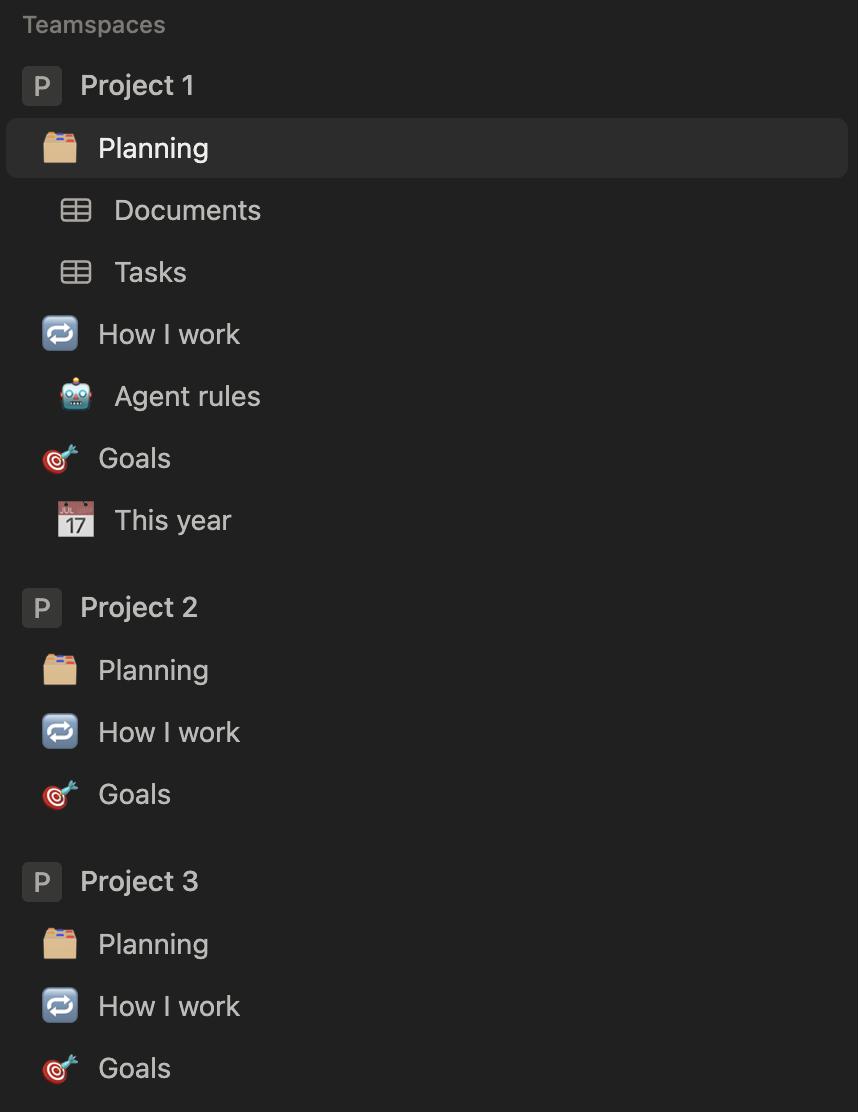
1. One teamspace for each project
I have one teamspace for each project I work on, like this blog. My agent works under those teamspaces.
2. Two linked databases, tasks and documents
Inside a teamspace I keep a Planning page with two databases, one for tasks and one for documents. They’re linked, so every task points to the documents it needs. Next to Planning sit the pages that explain how I work and what my goals are.
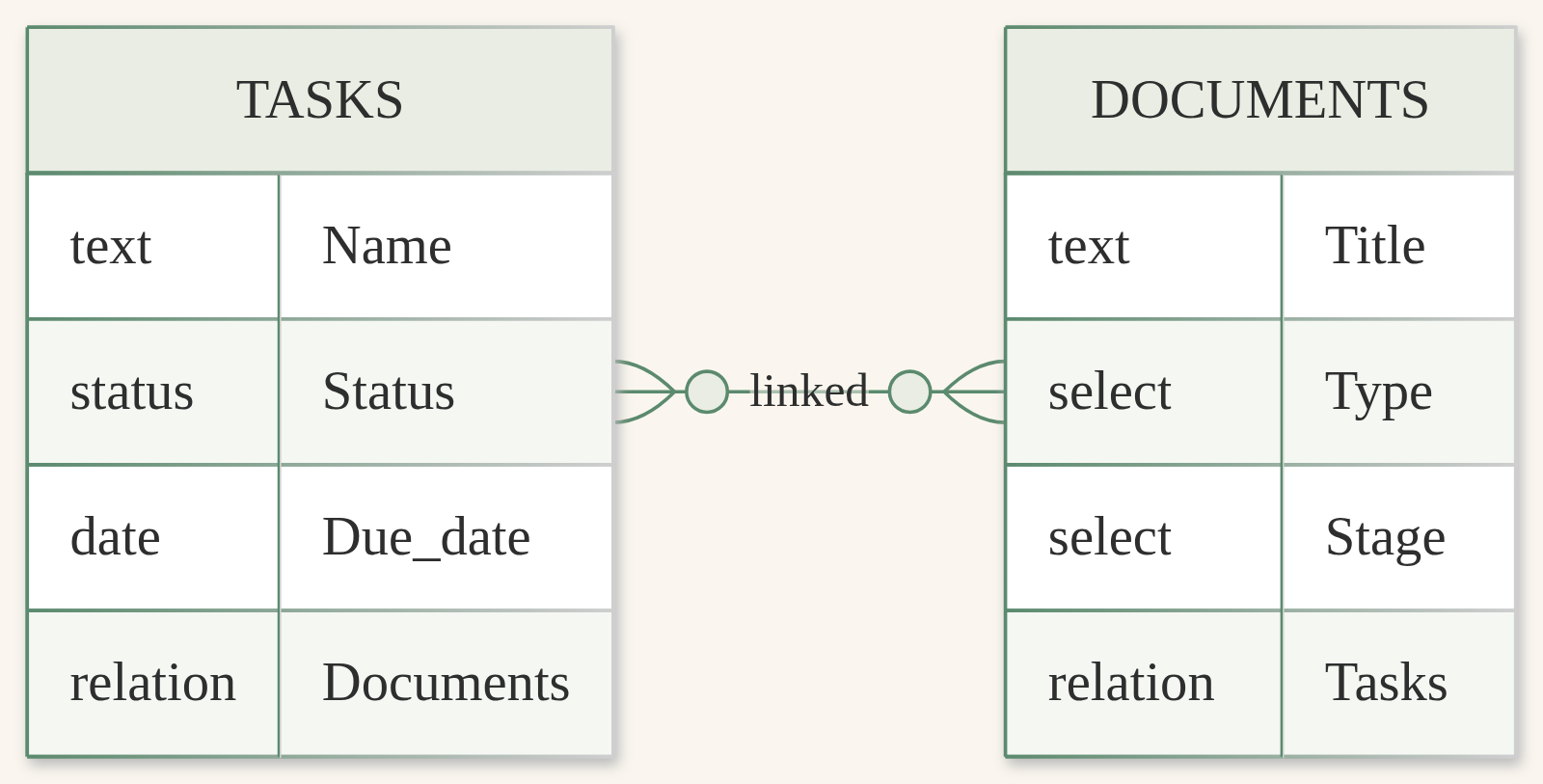
- Status goes from Not started to In progress, Ready and Done.
- Stage goes from Idea to Outline, Draft, Ready and Published.
- Type says what the document is, like Notes, Personal story, Blog, LinkedIn, Instagram or YouTube.
3. Work with your agent day to day
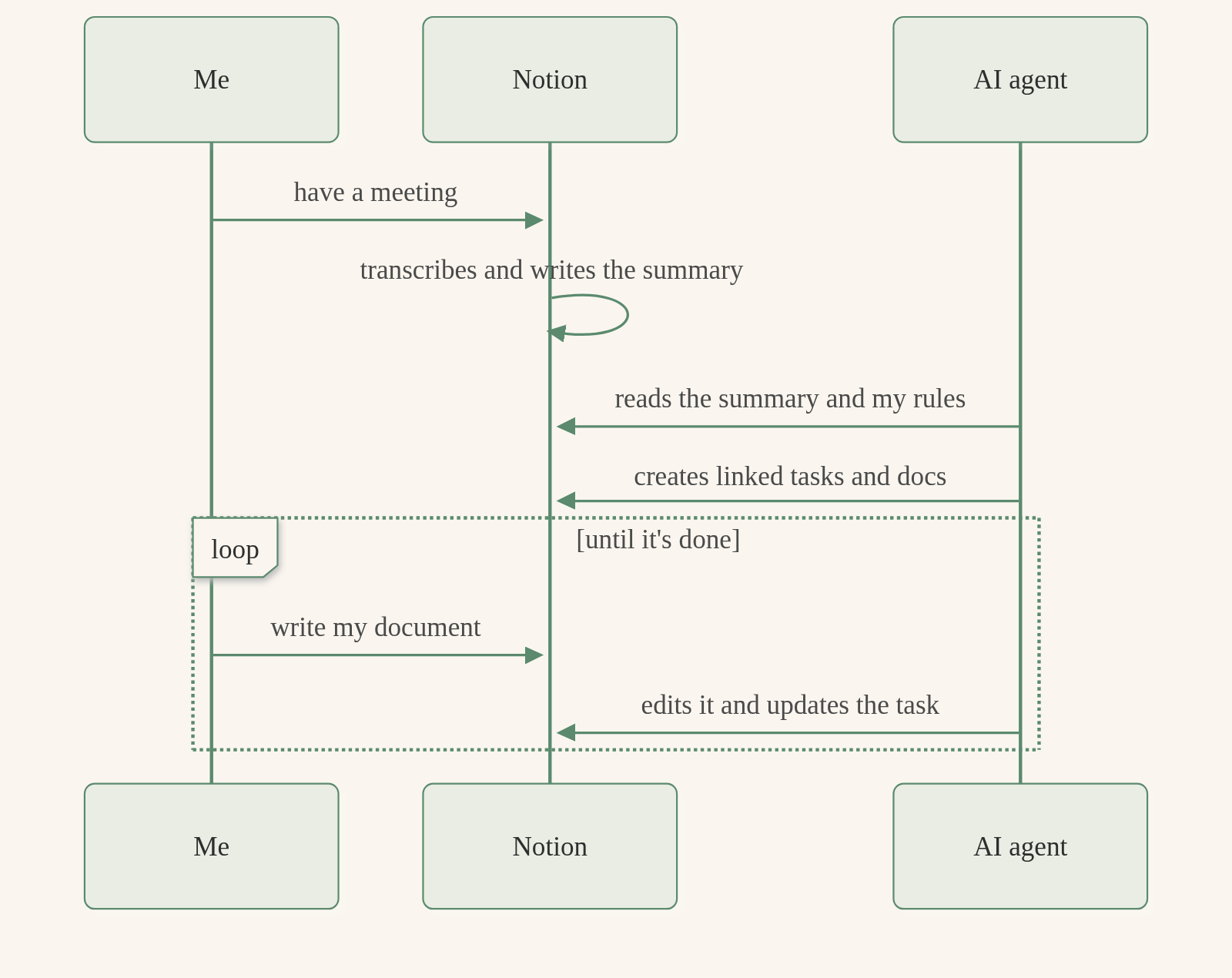
This is how a normal day works. After a meeting, AI Meeting Notes transcribes it and writes the summary. My agent reads that summary along with my rules, then creates the tasks and documents and links them together.
From there it’s a back and forth. I write my own document, my agent edits it and updates the task, and I come back and write more until it’s done.
4. Put the rules in your agent’s instructions
As you write your agents, what I found useful is putting how to use Notion right in the agent’s instructions. I tell it where everything lives and what each database and field is for. If it’s Claude, that goes in the project instructions. If it’s Grokbot, it goes in the agent profile.
Why not keep it in a Notion page?
Because it’s not context, it’s your agent’s instructions. You don’t want the agent loading a page at the start of every message. You want it in the system prompt, so it’s always there.
So far, for note taking, documentation and task tracking, Notion is the best tool I’ve found. It’s still a setup I’m testing, and as of today, it’s the one that stuck.
A question to sit with
How many places would your AI agent have to look to understand what you’re working on?
Join the newsletter below and hit reply with your answer. I read every reply.